Mail Exchanger records (MX records) specify which mail server is responsible for the email of a particular domain. You may well be pleased to know that most customers will never have to touch them!
However if you are putting in place a more complex setup, wishing to direct your incoming email to, for example, your own local mail server, modifying your MX record is often the best way to do it.
This is one of the more complex topics we deal with on the helpdesk, so please find a brief guide below.
By default on a new account with Blackfoot the server will assume that we will handle incoming email for your domain. If this is not the case (and we are hosting the DNS for your domain) you can manage the MX record for your domain using the ‘MX Entry Maintenance’ section within the hosting account control panel http://yourdomain.com/cpanel

1. Changing the MX Record
If you would like to use a different mail server to handle incoming email, you can edit the current MX record. Please ensure that you have specified a fully qualified domain name (FQDN) as it is not possible to have an MX record pointing directly to a numeric IP address.
If you only have an IP address, the “Simple DNS Zone Editor” should first be used to create a FQDN pointing to that IP address for example remotemail.yourdomain.com or similar that you can use as your MX record.
When entering a new MX record you will also need to enter the priority you require for that mail server.
Lower values denote higher priority, thus, a mail server with priority 0 is always preferred over all other listed mail servers. Please note spammers will often target lowest priority email servers, as these may be backup servers with little protection, so you may wish to ensure that you are updating all your mail servers with the same anti-spam configuration.
2. Changing the Routing
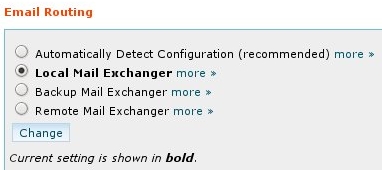
Specify how the server should deal with mail it receives for your domain
The control panel also allows you to set the routing for your domain (or how the server will deal with any emails it receives). The settings available are:
- Automatically detect routing - The server will attempt to guess the correct setting based on the MX entries you have entered.
- Local - The server will deliver all email it receives locally (i.e into mailboxes you have created within your hosting account control panel).
- Backup - The server will attempt to pass any incoming email to lower priority records. In this way it can act as a backup if your primary server is down. If you choose this option DO NOT create mailboxes in the hosting account control panel.
- Remote - The server will attempt to route all email by looking up your domain’s published MX Records. No delivery to local mailboxes is permitted.
If you need any help editing your MX records or with your account in general you can contact us via our helpdesk.