


If you’re relatively new to the world of the web and want to add a blog, gallery, guestbook or shopping cart to your website the level of choice and the complexity involved in setting one up can be quite startling.
In order that you can quickly trial the most popular scripts every Blackfoot hosting account has a ‘Site Software’ section, which allows you to install many popular scripts such as WordPress, Gallery and OSCommerce quickly and easily.
The ‘Site Software’ section can be found in the ‘Software’ section of the hosting account control panel.
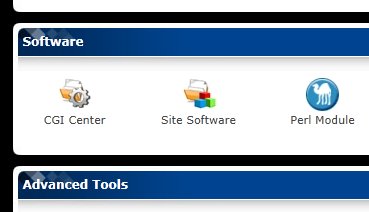
There are several categories, such as ‘Blogs’, ‘Ecommerce’, ‘Gallery’ etc to help you find what you want. Most of the software is free to use, however any that do require a license key will inform you once you’ve clicked through to their information page.
When installing a script from Site Software, you’ll generally need to provide:
- An admin username and password (you’ll use this to access the script’s administration area). We’d advise not to use your control panel username and password.
- A location to install the script. It’s fine to use the default, which will install the domain to a folder within your account, resulting in an address of, for example www.yourdomain.com/wordpress/ Remember not to choose a location that already has files in it you want to keep!
Many of the scripts require a database, however all of our current hosting packages provide at least one, so don’t let this put you off. The database will be created for you and the necessary configuration files created behind the scenes when you click install.
Once the install is complete you’ll be provided with a link to the installed script / it’s admin area.
Time to upgrade?
Your control panel will notify you if there are updates available to any scripts you have installed. It’s important to apply the updates as soon as possible to protect your website and the security of your account. When an upgrade is available an option to action the upgrade will be provided on the page for the relevant script in ‘Site Software’.
Two Golden rules for upgrading scripts
- Your script might also notify you an upgrade is available in it’s admin area. Always upgrade the script with the same tool you installed it. For the purposes of this article as you installed your script via ‘Site Software’ to prevent things from breaking you’ll need to upgrade it there too. Once you’ve learned about the script and got to really love it, If you do want to upgrade it manually for greater control, please let us know so we can remove the reference to the install in Site Software
so the control panel doesn’t nag you about an upgrade you’ve already made.
- Always take a backup before making an upgrade. It’s a fact of life that software changes and you may in rare cases find you have a need to revert to the previous version. Backups can be taken at any time via the ‘Backups’ section of the hosting account control panel.
Getting help with scripts
We like to consider ourselves pretty knowledgeable (and modest too, as there is always more to learn!), however the absolute experts on a script will always be the developers. You’ll find a link to the developer’s website at the top of the page for each script in ‘Site Software’ and this is often an invaluable resource in learning how to use the script. For example the ‘Docs’ (link http://codex.wordpress.org/) section of the WordPress.org site is a veritable treasure chest of useful information.
The developer’s website can also be a good port of call if you want to find a consultant to make special customisations to your script.
The above said, if you do run into a problem, we’ll always do our very best to point you in the right direction via the helpdesk which you can contact online here or by emailing support at blackfoot.co.uk




[...] you’ve installed scripts using the Site Software feature in your hosting account control panel any you no longer need can be removed just as easily. Scripts [...]